MetaTrader 5 · .ex5 · Free
Free Xmaster (XHMaster) Formula MT5 Indicator Download
Get the XHMaster .ex5 file for MetaTrader 5, install it in two minutes and learn to read every arrow it draws. Both the 2026 three-signal build and the classic 2025 build are here.
- Free, no sign-up
- Signals fixed on candle close
- Every timeframe and symbol
What it draws
What the XHMaster indicator shows on your MT5 chart
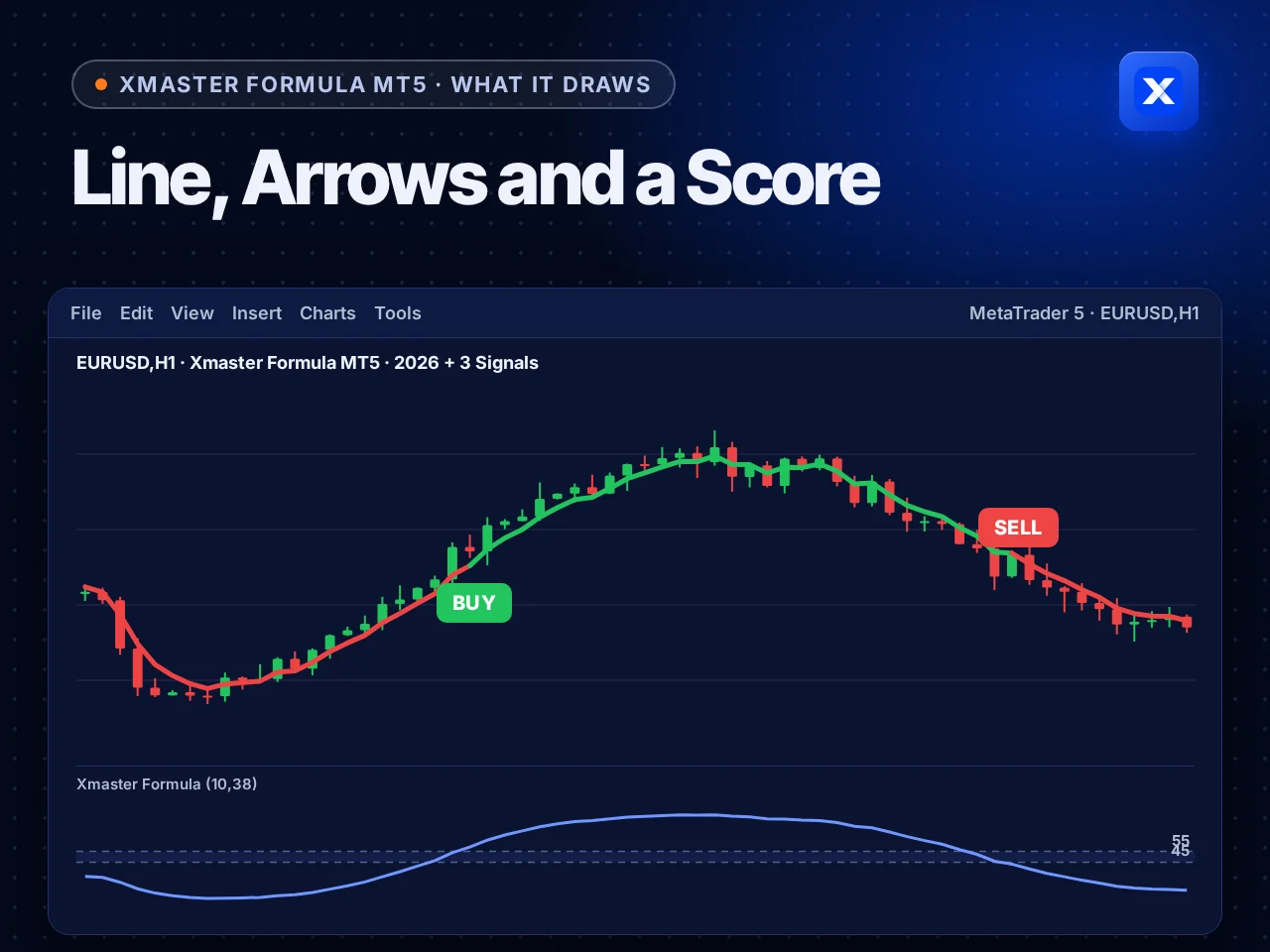
Three things appear on your MetaTrader 5 chart, and they always agree with each other. The line gives the direction, the arrow marks the turn and the score in the window below shows how strong the push is.
- A trend line, green up and red down
- A BUY or SELL arrow where the trend turned
- The 10/38 oscillator with 55 and 45 marked
- Fixed once the signal candle closes
Partner brokers
Partner brokers for Xmaster (XHMaster) Formula signals
Open a free account with one of our three partner brokers and trade the Xmaster signals there. Each one offers a demo account to practise on first.
-

Pocket Option
Fast binary trades from 5 seconds, real and OTC pairs, a free demo account.
Sign up on Pocket Option -

Quotex
A clean trading screen, OTC pairs around the clock and a free demo to practise on.
Sign up on Quotex -

Olymp Trade
Fixed time trades on forex, metals and crypto, with a free demo account.
Sign up on Olymp Trade
Partner links: we may earn a commission when you open an account, at no cost to you. Trading carries a high risk of loss.
The 2026 build
Three XHMaster signal types, from early warning to full agreement
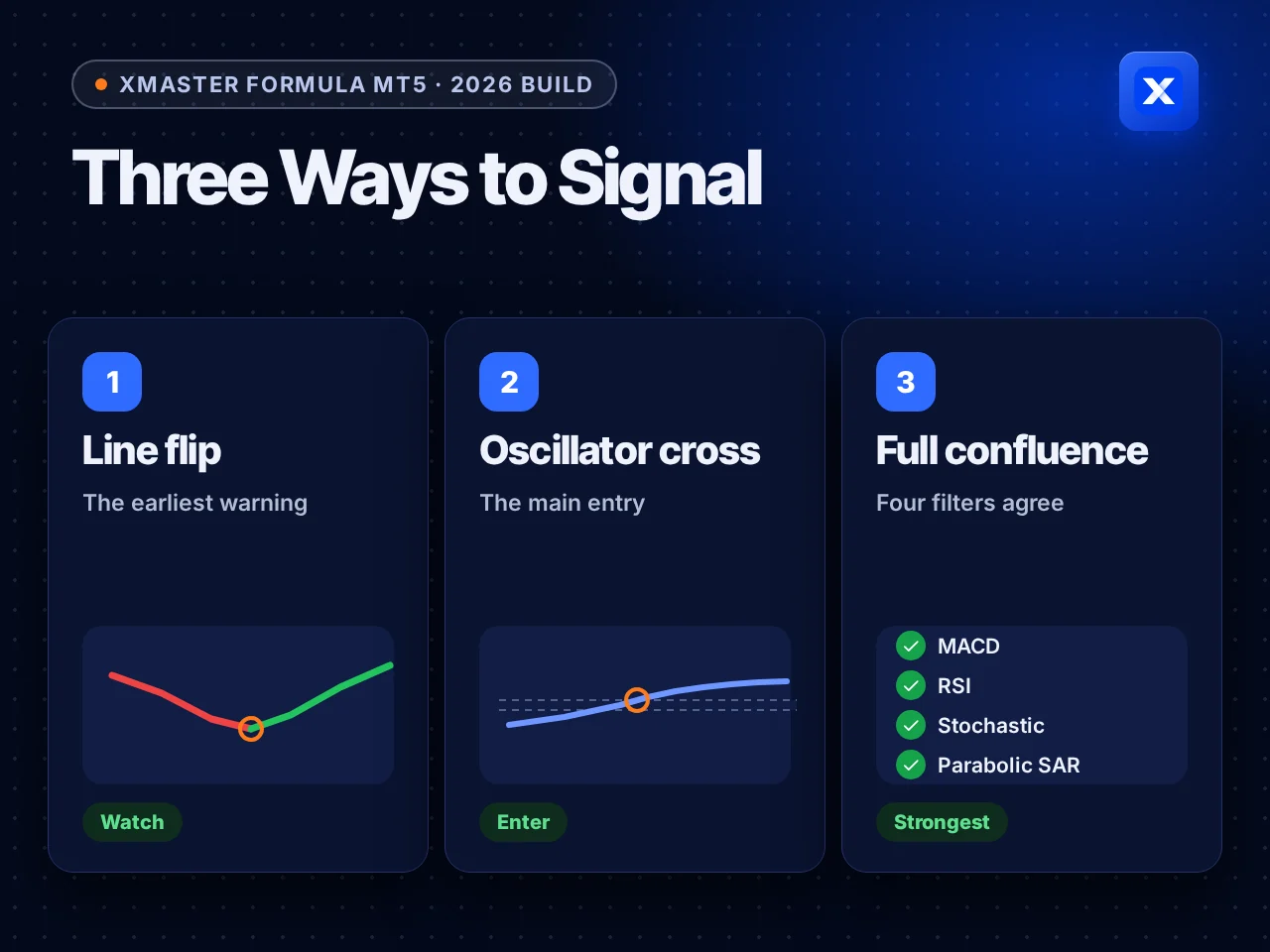
The 2026 + 3 Signals build keeps the classic line and arrows and grades every turn. You see the first hint early, the main entry on the oscillator cross, and a rarer signal when four classic indicators agree.
- Line flip: the trend line changes colour first
- Oscillator cross: the score closes past 55 or 45
- Full confluence: MACD, RSI, Stochastic and Parabolic SAR agree
- The 2025 classic build shows line and arrows only
Alerts
Every XHMaster arrow reaches you, even away from the screen
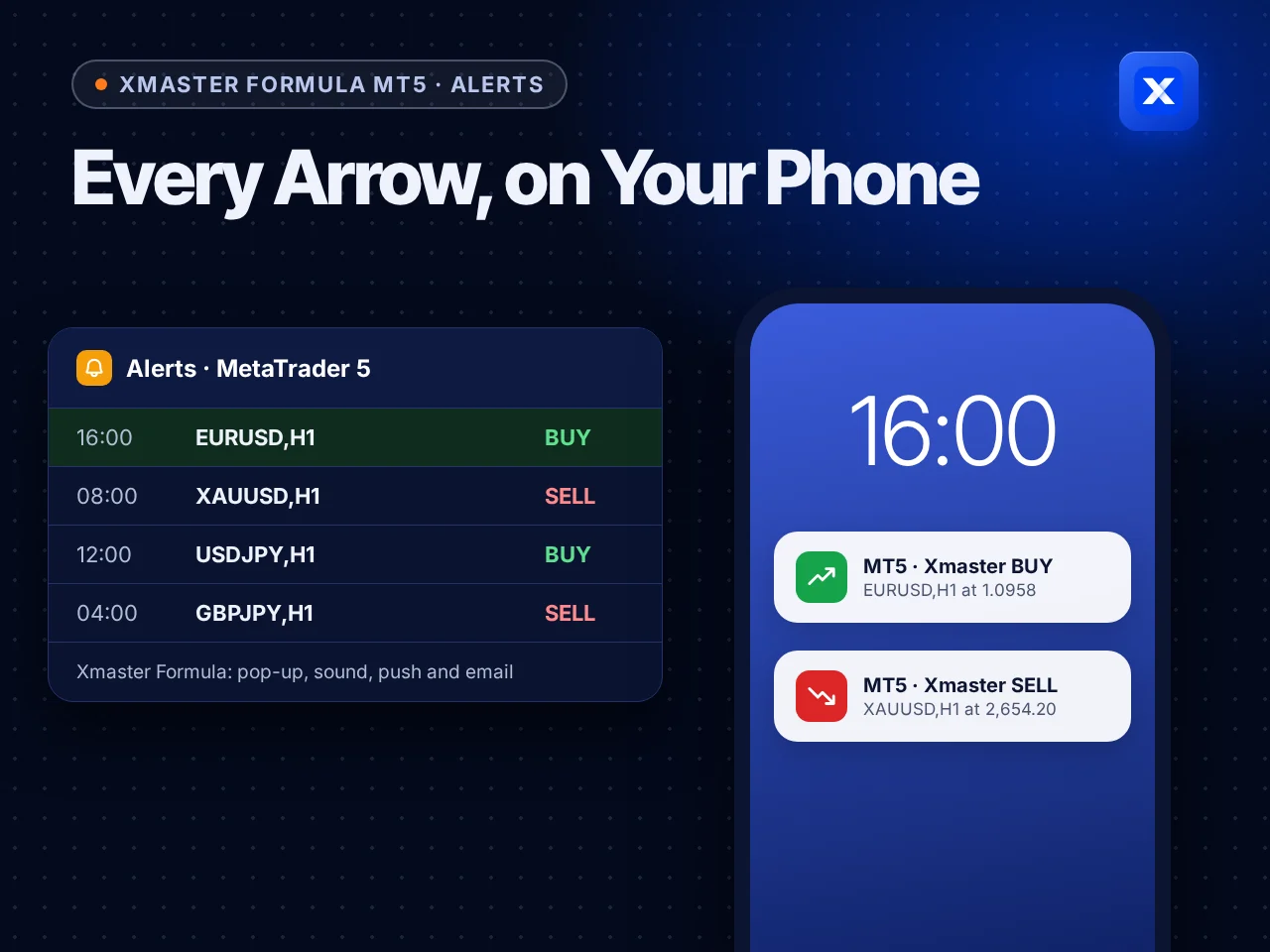
Each new arrow can raise a pop-up and a sound in MetaTrader 5, a push message on the MetaTrader 5 phone app and an email. You stop staring at charts and look only when a signal prints.
- Pop-up and sound in the terminal
- Push to the MetaTrader 5 app on your phone
- Email, if you set up a mail server
- Switched on in the indicator's Inputs tab
At a glance
Xmaster (XHMaster) Formula MT5 in one picture
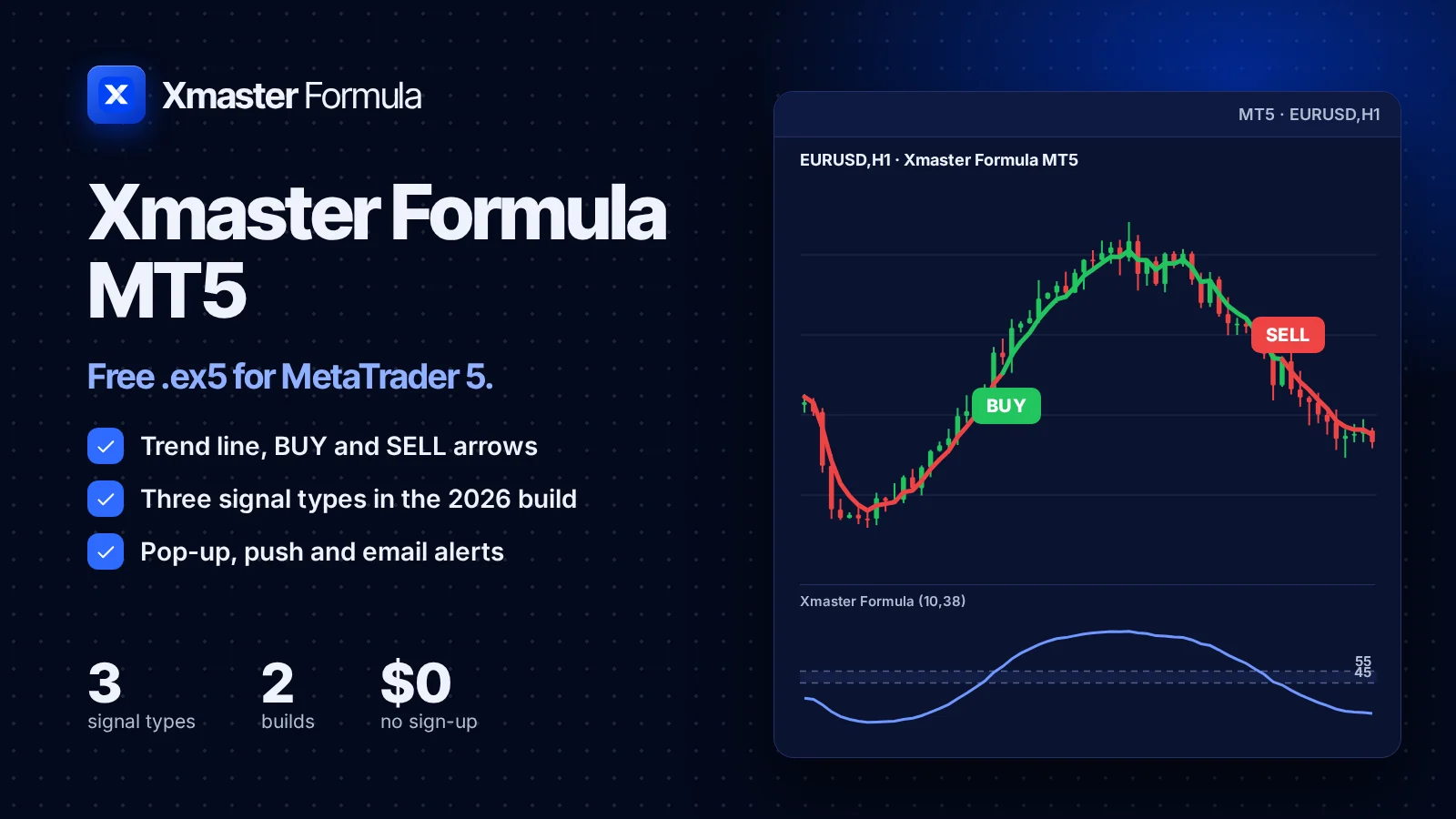
The file, what it draws and how it tells you. Everything the .ex5 adds to MetaTrader 5, on one screen.
Tutorial
How to trade with the Xmaster (XHMaster) Formula MT5 indicator
A seven-step routine, from reading the chart to testing it on history. Every picture is drawn from the same formula as the .ex5 file, so each arrow sits where the indicator would print it.
-
Read the four parts of the chart
Once it is installed (the install steps are below), drag Xmaster Formula onto a EURUSD H1 chart. Four things matter, numbered in the picture.
- The trend line sits on the candles. Green means the trend is up, red means it is down.
- The arrow prints on the candle where the trend turned. BUY sits under the candle, SELL above it.
- The oscillator in its own window turns the gap between a 10 and a 38 period average into a score from 0 to 100.
- The 55 and 45 levels are the triggers. A close above 55 starts a buy, a close below 45 starts a sell, and the band between them is noise.
Other sites show this indicator with yellow arrows or coloured dots. Those are other builds of the same idea. The .ex5 files on this page draw exactly what you see here.
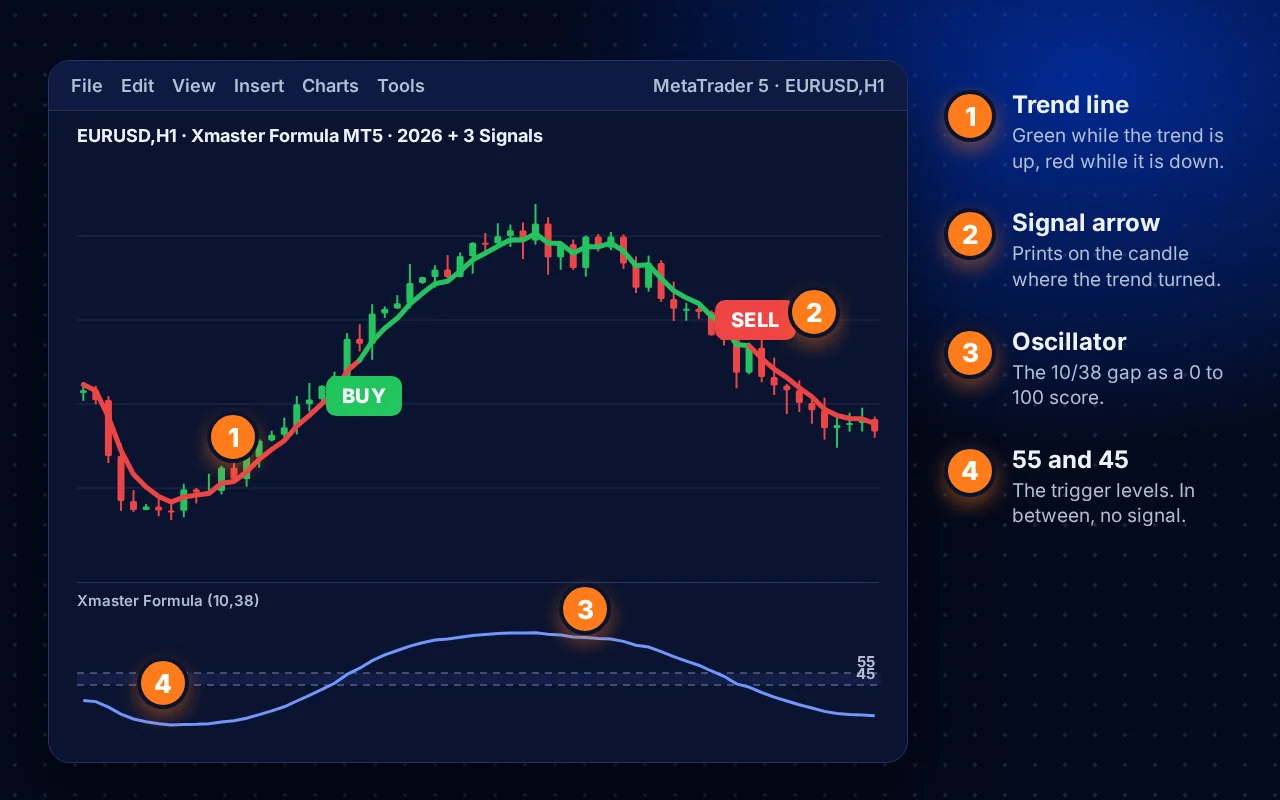
The four parts of Xmaster Formula on a EURUSD H1 chart in MetaTrader 5. -
Let the higher timeframe pick the side
MetaTrader 5 offers twenty-one timeframes: M1 to M30, H1 to H12, D1, W1 and MN, including in-between ones such as M2, H2 and H8. Most false arrows come from trading against the bigger trend, so use two of them.
- Direction comes from the line one step up. On H4, a green line means you only take buys.
- Timing comes from your trading chart. On H1, take the BUY arrows and skip the SELL arrows while H4 is green.
- Good pairs to learn on are the liquid majors such as EURUSD, GBPUSD and USDJPY, plus gold on H4 and above.
Below M15 the arrows come often and many fail. H1 and H4 give fewer signals with more behind each one, which is why this guide uses them.
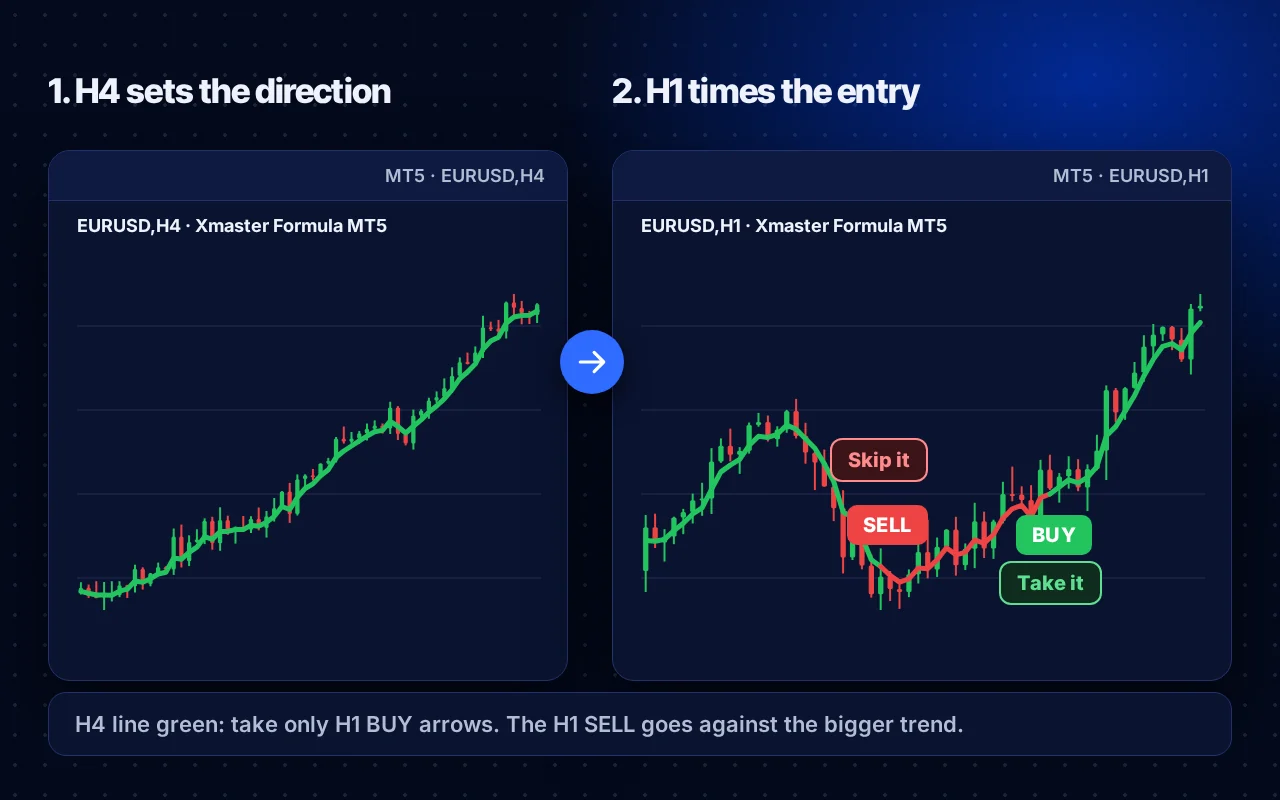
H4 is green, so the H1 SELL is skipped and the H1 BUY is taken. -
Plan entry, stop and target before you click
Write the three prices down before you open the trade. Deciding them after you are in is how small losses become large ones.
- Entry is the open of the candle after the signal candle has closed. Never enter while the signal candle is still forming.
- Stop loss goes just beyond the last swing low for a buy, or the last swing high for a sell.
- Target is twice the stop distance. In the picture the stop is 36 pips, so the target is 72 pips (2R).
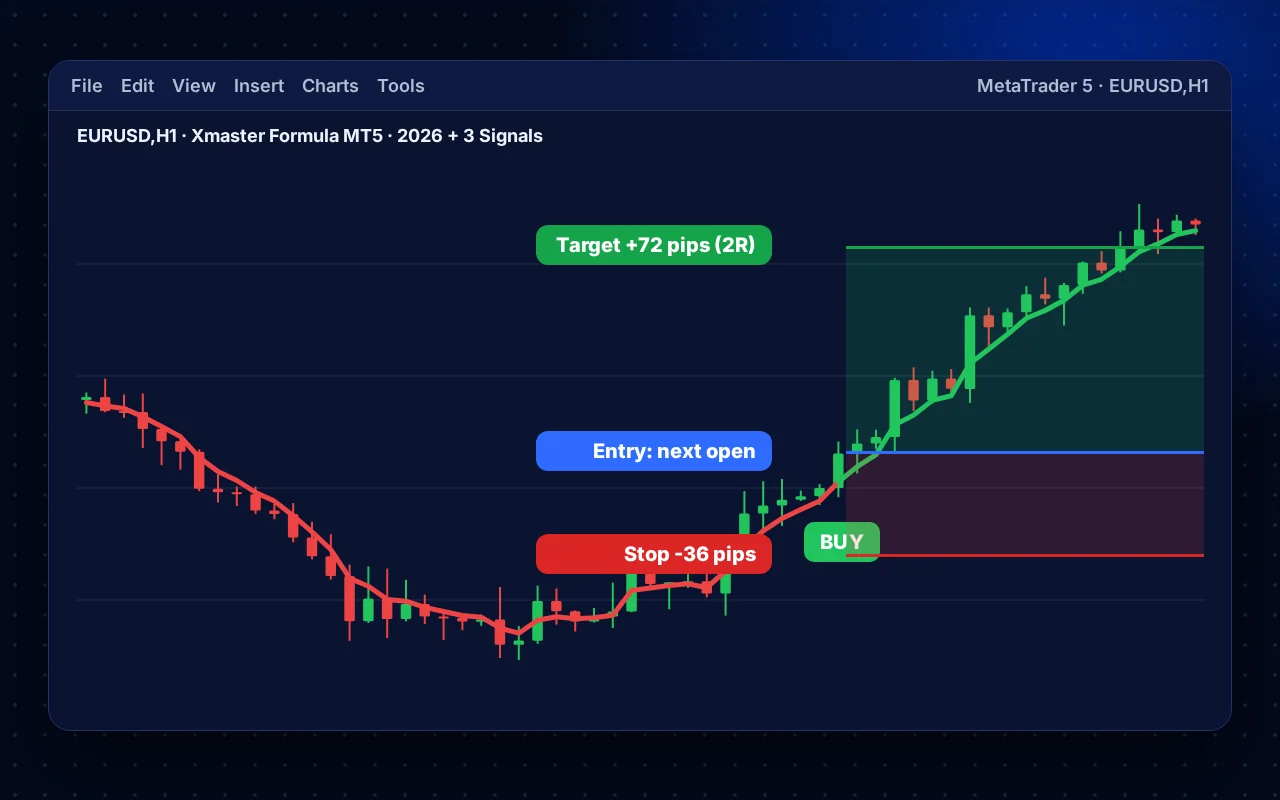
Entry on the next open, the stop under the swing low, the target at twice the risk. -
Size the trade from the stop, not from a feeling
Risk the same small share of your account on every signal, 1% is a common choice. The stop distance then sets the lot size, so a wide stop means a smaller position. In MetaTrader 5, set the volume in the order window after you work it out.
Worked example: lot size from the stop Step Value Account balance $1,000 Risk per trade (1%) $10 Stop distance 36 pips Value of 1 pip on 0.01 lot of EURUSD $0.10 Risk on 0.01 lot 36 x $0.10 = $3.60 Lot size $10 / $3.60 = 2.7, round down to 0.02 lots -
Hold with the line, leave on the opposite arrow
Once you are in, the line does the managing. Two exits are allowed, and you pick one before entry.
- Fixed target. Take profit at 2R and accept that some trends run further without you.
- Trailing exit. Stay in while the line keeps its colour and close on the opposite arrow. This catches the long runs and gives back more on reversals.
Do not widen the stop while the trade runs. If the line flips against you before the stop is hit, closing early is allowed.
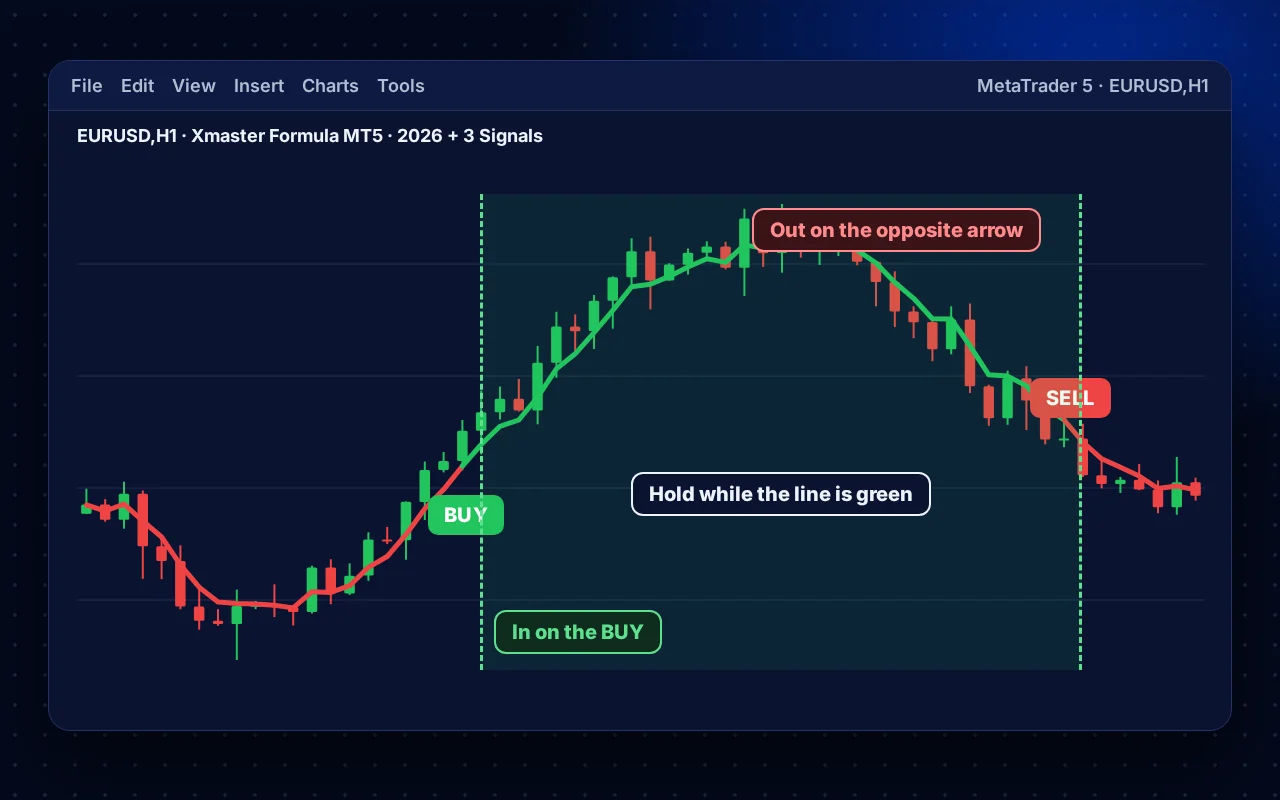
In on the BUY, held while the line stayed green, out on the SELL arrow. -
Skip the setups that usually fail
Not trading is part of the method. Pass on a signal when any of these is true.
- The score is flat. When the oscillator stays near 50 for many candles, the market is ranging and arrows flip back and forth.
- News is due. Skip arrows from about 30 minutes before to 30 minutes after big releases such as US jobs data, inflation figures or central bank decisions.
- Price is at a wall. A BUY right under a daily high, or a SELL right above a daily low, has little room to run.
- The higher timeframe disagrees. Step 2 already filters these out.
-
Practise in the Strategy Tester first
You can replay months of history and watch the arrows print candle by candle, without risking anything.
- Open ViewStrategy Tester or press Ctrl+R.
- Choose Xmaster Formula as the indicator, then pick EURUSD, the H1 period and the Every tick based on real ticks model.
- Tick Visual mode, click Start and note every signal: date, side, entry, stop, target and result.
Log at least 50 signals this way, then trade the same rules on a demo account for a few weeks. Move to real money only if the results hold up.
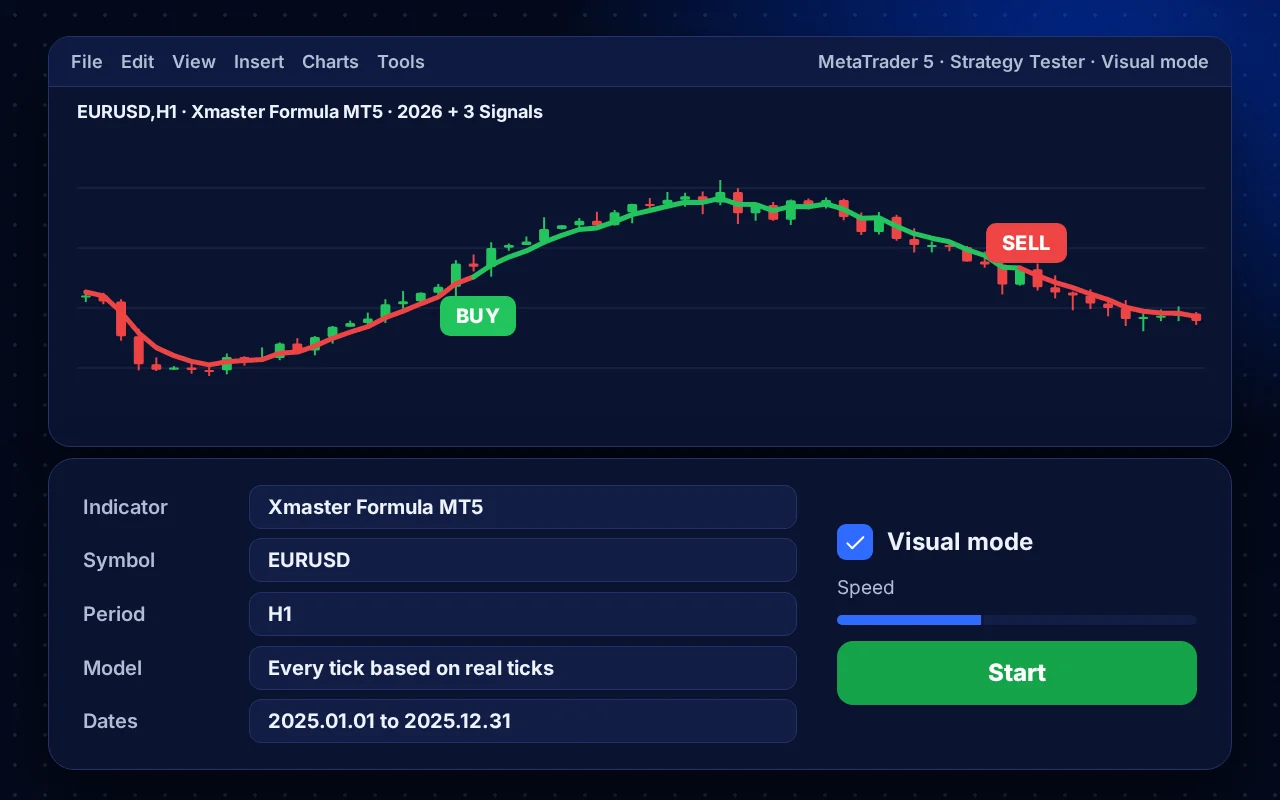
The MetaTrader 5 Strategy Tester in visual mode, replaying Xmaster Formula on EURUSD H1.
Install
How to install Xmaster (XHMaster) Formula in MetaTrader 5
Five steps, about two minutes. You only do this once per terminal.
MetaTrader 5 runs on Windows and macOS, and in the browser through MetaTrader 5 Web. Custom indicators need the desktop terminal.
Download the file
Use the download button above. The 2026 build is the one most traders want. Save the .ex5 file somewhere you can find it, such as your Downloads folder.
Open the data folder
In MetaTrader 5, click FileOpen Data Folder. A window opens with the folders MetaTrader 5 uses.
Copy the file into Indicators
Open MQL5Indicators and paste the .ex5 file there. Do not put it in Experts or Scripts.
Refresh the Navigator
Close the folder and go back to MetaTrader 5. In the Navigator panel (Ctrl+N), right-click Indicators and choose Refresh, or restart the terminal.
Drag it onto a chart
Find Xmaster Formula under Indicators and drag it onto any chart. Keep the default inputs for now and click OK.
Alerts
Get every XHMaster signal on your phone
You do not have to watch the chart. Let MetaTrader 5 tell you when an arrow prints, wherever you are.
Turn on alerts in the inputs
Press Ctrl+I on the chart, double-click Xmaster Formula, open the Inputs tab and switch on the alert types your build offers: pop-up, sound, push or email.
Link your phone for push alerts
Install the MetaTrader 5 app on your phone and copy the MetaQuotes ID shown in the app settings, under messages. On the desktop, paste it into ToolsOptionsNotifications and tick Enable Push Notifications.
Set up email if you want it
In ToolsOptionsEmail, enter your mail server details and click Test. Many traders skip email and use push alerts alone.
Keep the terminal running
Alerts come from the desktop terminal. If it is closed or the computer sleeps, no alert is sent. A small VPS keeps it running all day.
Troubleshooting
If something does not work
Almost every problem comes from one of these five causes.
| Problem | Fix |
|---|---|
| It is not in the Navigator | The file is in the wrong folder. It must sit in MQL5\Indicators inside the folder that FileOpen Data Folder opens. Then refresh the Navigator. |
| The file will not load | You may have the .ex4 file. .ex4 files only run in MetaTrader 4. This page is for MetaTrader 5; the MT4 file is here. |
| No arrows on the chart | Scroll back a little: arrows only print where the trend turned. On a strong one-way trend, the last signal can be far to the left. |
| An arrow disappeared | It printed on a candle that had not closed yet. When that candle closed, the cross was no longer there. Arrows on closed candles stay. |
| Chart is very slow | Lower the number of bars the chart shows in Tools, Options, Charts, and remove indicators you do not use. |
FAQ
Frequently asked questions
Is the Xmaster (XHMaster) Formula MT5 indicator free?
Yes. Both .ex5 builds on this page are free to download and use, with no sign-up and no trial period.
Which build should I download?
The 2026 + 3 Signals build suits most traders: it keeps the classic line and arrows and adds two more signal types. Take the 2025 build if you want the quieter chart you already know.
Does the XHMaster MT5 version repaint?
Not on closed candles. While a candle is still forming, an arrow can appear and disappear as price moves. Once the candle closes, the arrow is final.
What is the best timeframe?
H1 and H4 for learning and for most swing trades. M5 and M15 work for scalping, with more false signals. Always test a timeframe on a demo account first.
Does it work with any broker?
Yes, with any broker that offers MetaTrader 5. The indicator reads the chart in your terminal, so it works on forex pairs, gold, indices and crypto CFDs alike.
Can I use the .ex5 file on my phone?
No. The MetaTrader 5 mobile app cannot load custom indicators. Run the indicator on a desktop terminal and send its alerts to the phone app as push notifications.
Can XHMaster Formula open trades for me?
No. It is an indicator, not an expert advisor. It shows signals and sends alerts; you place every trade yourself.
Other versions
Xmaster Formula on other platforms
One formula, four places to run it. Pick the one that matches where you trade.
-

Xmaster Formula MT4
The .ex4 file for MetaTrader 4, with the 2026 three-signal build and the classic 2025 build.
-
TradingView version
The open-source no repaint script on TradingView, with Standard and Advance modes.
-
AI Signal Bot
Fast 5, 15 and 30 second signals for Pocket Option and Quotex, right in your browser.
Get the Xmaster Formula on your chart today
Pick your platform. Every version is free, and each page walks you through the install in a few minutes.